



To set up your CPR Website Designs mailbox on an Apple iPhone or iPad, you need to:
- Head to the Settings icon and locate the Accounts & Passwords option.
- Then select 'Add Account'.
- Select Other from this list.
- Input the information requested:
Name: Anything
Email: example@yourdomain.com
Password: Mailbox Password
Description: Work, Business…etc
IMAP:
Incoming Mail Server
Host Name: imap.yourdomain.com
Username: example@yourdomain.com
Password: Mailbox Password
Outgoing Mail Server
Host Name: smtp.yourdomain.com
Username: example@yourdomain.com
Password: Mailbox Password
- Finally, select the mail account and go into the Outgoing Mail Server settings. Select Primary Server, make sure SSL is switched on and the port is set to 587.
Email should now be set up on your iPhone or iPad.
You may also install onto apple using the IOS mobile profile. This method is usually easier.
Log into your control panel at https://cp.cprwebsitedesigns.com.
Under Manage Services, select hosting.
Select the package you'd like, then manage.
Select Email Accounts.
Pick the email account your like to add and click the option link.
Select Account Set Up.
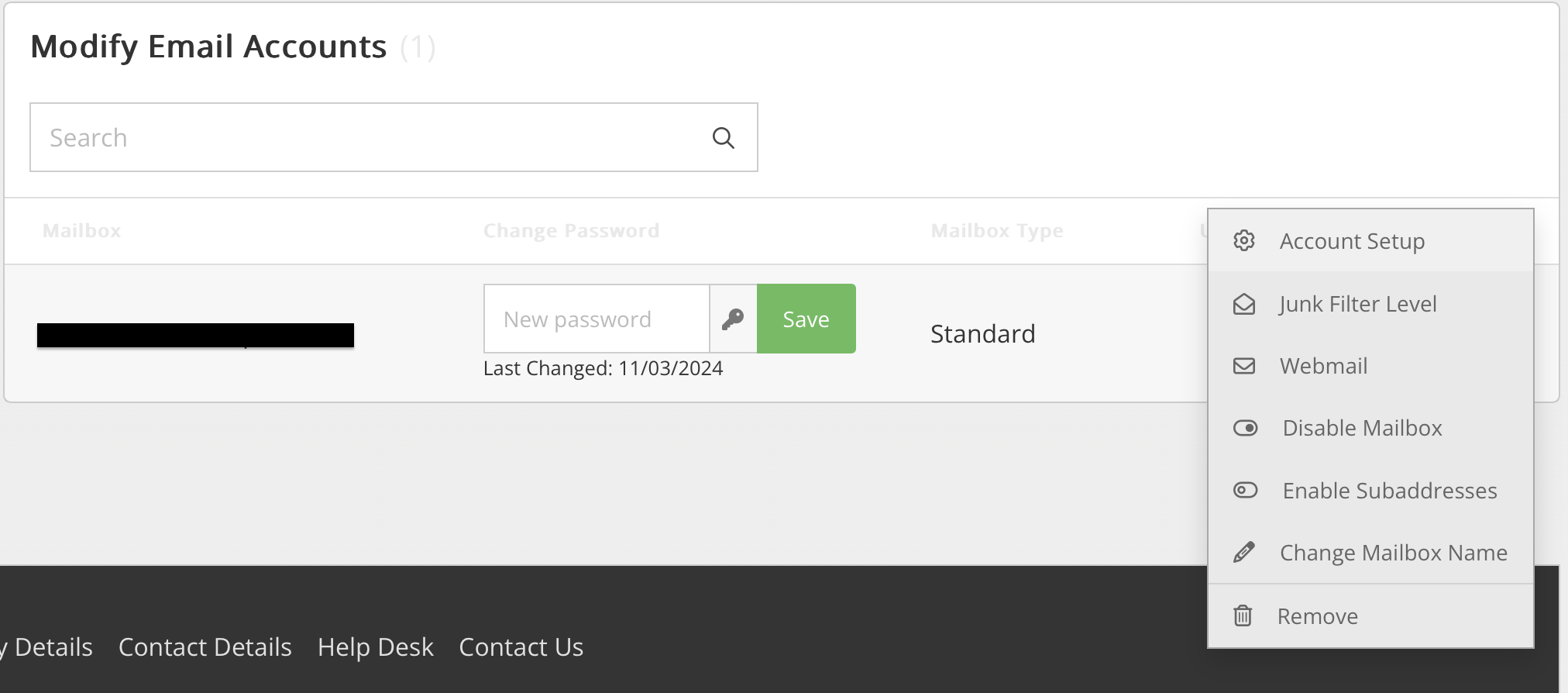
You will then see the Download iOS Mobile Profile in the top right corner.

Install the profile onto your device. You will then have access to the emails.